
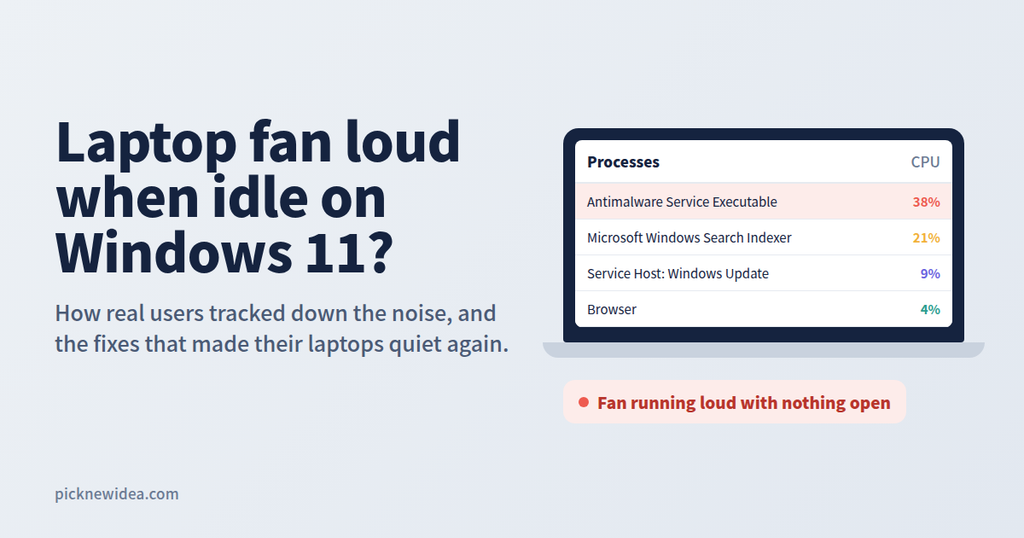
You close your apps, the desktop is empty, and your laptop still sounds like it’s about to take off. A loud fan at idle is one of the most common Windows 11 complaints, and it drives people up the wall in quiet offices, classrooms, and bedrooms.
To figure out what’s really going on, we went through discussions on Microsoft’s community forums, Tom’s Hardware, Lenovo and HP communities, and other forums where laptop owners troubleshoot together. The same lesson comes up again and again: the fan is rarely the problem. It’s reacting to heat, and the heat comes from something you can usually find and fix.
First, Understand What the Fan Is Telling You
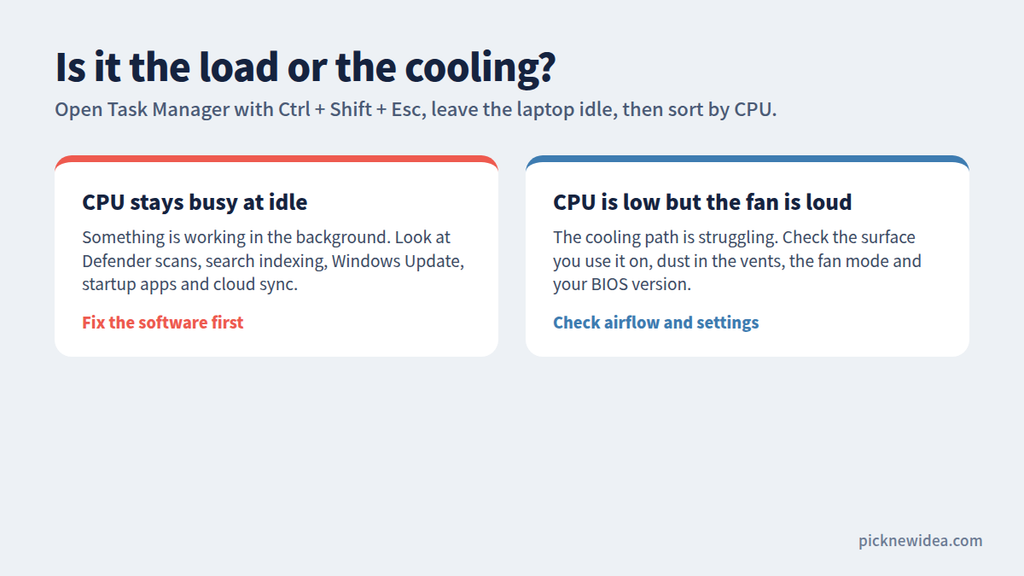
Fan noise is a symptom, not a fault. As one recent Windows troubleshooting guide puts it, a loud fan signals heat, which comes either from work the CPU is doing or from a cooling path that has stopped working properly. It also warns that silencing the fan without solving the heat just shifts the problem to thermal throttling.
That gives you a simple way to diagnose it: is it the load, or is it the cooling?
How to Check in 30 Seconds
Press Ctrl + Shift + Esc to open Task Manager, go to the Processes tab, and sort by CPU. The same guide suggests that anything sitting above roughly 20% while the laptop is idle is probably what’s driving your fan.
- If CPU usage is high, something in the background is working. Start with the software causes below.
- If CPU usage is low but the fan is still loud, the cooling side is struggling. Skip ahead to airflow, fan modes, and BIOS.
For a closer look, a Tom’s Guide Forum member recommended opening Resource Monitor from Task Manager’s Performance tab and sorting by CPU to see which processes are really using processor time. They also pointed out that the GPU can push the fan too, since many laptops use a single fan to cool both the CPU and the graphics chip.
The Most Common Causes (According to Real Users)
1. Microsoft Defender Scans
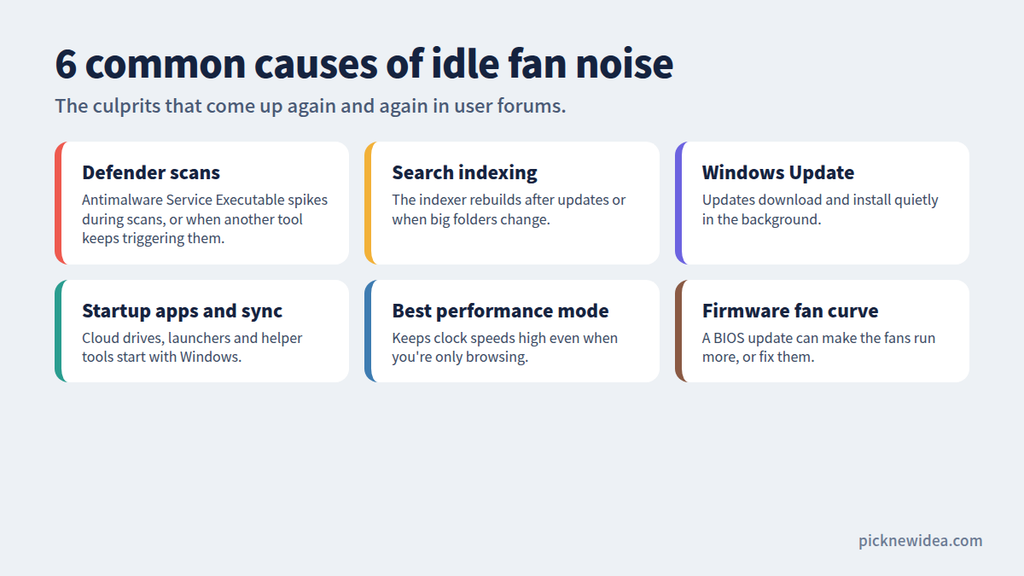
“Antimalware Service Executable” is the name that shows up most often in these threads. One user on Microsoft Q&A said this process kept their laptop fan running all day, and the noise started after an update. Another reported that the search indexer and Antimalware Service Executable together used about 55% of the CPU after a Windows 11 feature update, raising fan noise and cutting battery life.
Some of this is normal. A Microsoft forum volunteer noted that Defender using 100% CPU can happen while a scan is running. If it stays busy for long periods, another tool may be the cause: an independent advisor on Microsoft Answers explained that if Defender uses too much CPU, another program such as Dell SupportAssist may be repeatedly triggering on-demand scans, and suggested a clean boot to narrow it down.
2. Windows Search Indexing
After major updates or when you add many files, Windows rebuilds its search index. This can keep the CPU busy for hours. The one user in the Microsoft thread above specifically wanted to keep indexing enabled because they found search useful, which is a good approach: limit it instead of turning it off.
3. Windows Update and Post-Update Background Work
Updates download, install, and optimize in the background. A Lenovo troubleshooting discussion points out that a fan that gets louder after a Windows update often calms down once the background tasks finish, especially if the laptop stays on a hard surface with good airflow.
4. A Power Mode That’s Too Aggressive
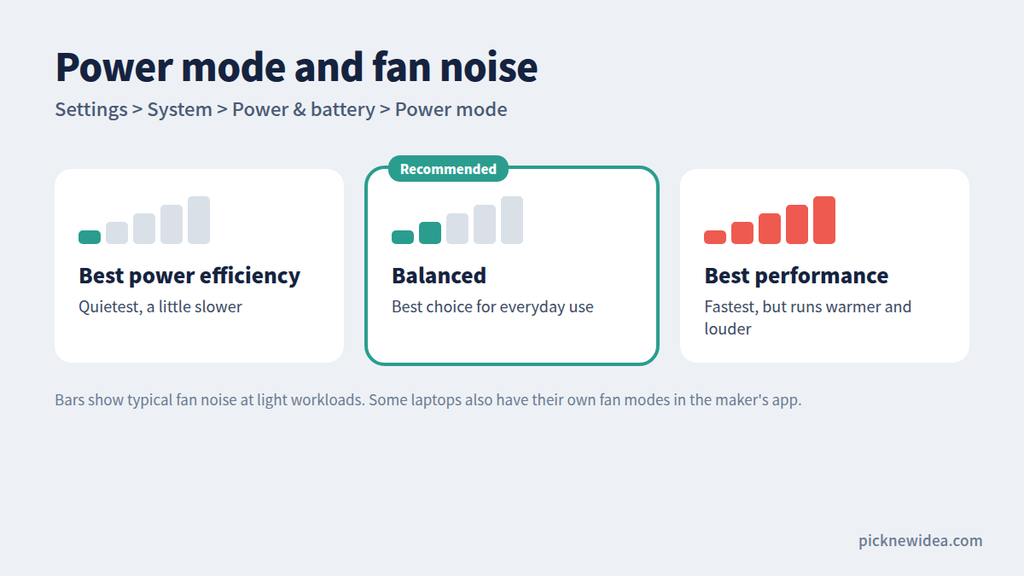
“Best performance” keeps clock speeds high even for email and web browsing. On Tom’s Hardware, a forum member noted that running in maximum performance can make the fans spin fast, while switching to Balanced helps quiet things down, with a possible small performance cost.
5. Manufacturer Fan Modes and BIOS Behavior
Many laptops have their own fan profiles on top of Windows. On the HP Support Community, one user complained that HP’s Comfort Mode behaves like Cool Mode and keeps the fans busy, recommending Default Mode for everyday tasks. BIOS updates can also change fan behavior for better or worse. On the Lenovo Community, a Legion 5 Pro owner said the fans started running all the time after the latest BIOS, and everything went back to normal after downgrading.
6. Dust and Blocked Vents
On older laptops, dust in the heatsink is a classic cause. Lenovo community moderators regularly remind users to keep vents clear, since dust restricts airflow and causes overheating.
How to Fix a Loud Laptop Fan on Windows 11
Step 1: Restart and Wait a Few Minutes
Restart the laptop, then let it sit for 10–15 minutes before judging the noise. Startup apps and background tasks often spike right after booting.
Step 2: Try a Full Power Cycle
This simple trick worked for several people. On Microsoft Q&A, a user said a power cycle reset fixed fan noise on several Dell laptops, and even solved a post-upgrade problem where a Latitude 5520 was throttled to 10% CPU. The idea is to shut the laptop down, unplug the charger, wait a short while, then plug back in and boot normally. On laptops with a removable battery, take it out during the wait.
Step 3: Set Power Mode to Balanced
Go to Settings > System > Power & battery > Power mode and choose Balanced. A WindowsForum guide notes that Microsoft itself warns that Best performance increases power use and can make laptops run warmer, making it the wrong default if fan noise bothers you.
Step 4: Tame Defender Without Disabling It
Don’t turn off your antivirus. Instead, let any running scan finish while you’re away, and schedule scans for times you’re not using the laptop. A Microsoft community volunteer moderator recommended exactly this: run scheduled scans when you’re not using the computer so the heavy work doesn’t interrupt you. If Defender stays busy constantly, perform a clean boot to find the program repeatedly triggering scans.
Step 5: Limit Search Indexing
Instead of disabling search, exclude folders that don’t need to be indexed. On Windows 11, this is under Settings > Privacy & security > Searching Windows > Add an excluded folder. Good candidates include large game libraries, backup folders, and developer build folders.
Step 6: Cut Down Startup Apps
In Task Manager, open Startup apps and disable anything you don’t need at login, such as game launchers, updaters, and chat apps. The WindowsForum guide notes that a loud fan right after signing in often traces back to startup apps.
Step 7: Switch Your Laptop’s Fan Mode
Open your manufacturer’s app, such as Lenovo Vantage, MyASUS, HP Omen Gaming Hub, Dell Power Manager, or MSI Center, and choose a quiet or balanced profile. Lenovo’s community staff suggest setting Vantage’s thermal mode to “Cool & Quiet” to reduce fan noise.
Step 8: Lower Maximum Processor State (Optional)
Many experienced forum users use this trick. A Tom’s Hardware member suggested lowering the maximum processor state in Windows’ advanced power settings from 100% to 90%, noting that most people won’t notice the performance drop. You’ll find it under Control Panel > Power Options > Change plan settings > Change advanced power settings > Processor power management. Note that some newer laptops hide these classic power plans.
Step 9: Update Your BIOS and Drivers
Manufacturers often adjust fan curves through firmware updates. Lenovo’s community moderators recommend keeping both drivers and BIOS up to date through Lenovo Vantage, and the same applies to other brands through their own support tools. If a BIOS update made things worse, check your manufacturer’s forum before trying a downgrade.
Step 10: Clean the Vents and Improve Airflow
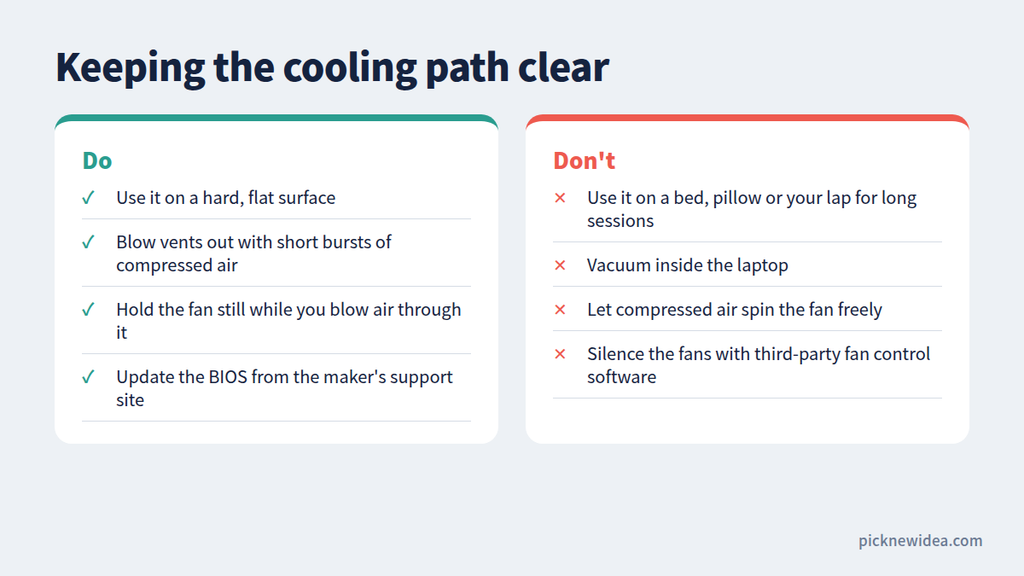
Always use the laptop on a hard, flat surface, not on a bed or pillow. To remove dust, use short bursts of compressed air through the vents. One Windows guide gives two important warnings: never vacuum inside a PC because it creates static, and don’t let compressed air spin the fan freely, since that can send voltage back and damage the fan or board.
When It’s a Hardware Problem
Software fixes won’t help in some situations. According to the WindowsForum guide, you should suspect hardware if the fan makes grinding, rattling, clicking, or scraping sounds, if the chassis is unusually hot while idle, if there’s a burning smell, or if the laptop shuts down without warning.
If temperatures stay high at idle even after cleaning, new thermal paste, and updated drivers, one repair guide notes the cooler may be poorly seated or the heat pipes may have failed, which calls for a professional repair. Also avoid third-party fan control apps that simply force the fans off. That same guide warns that the CPU will throttle and eventually shut down, and the extra heat shortens the life of nearby components.
Frequently Asked Questions
Is it normal for a laptop fan to run when idle?
A quiet, low-speed fan is normal, especially on thin laptops and gaming laptops. A fan that stays loud with nothing open usually means something is using the CPU, or the cooling is struggling.
Why is my laptop fan loud after a Windows update?
After updates, Windows reindexes files, runs security scans, and finishes installation tasks in the background. The noise usually settles within a few hours to a day.
Is Antimalware Service Executable a virus?
No. It’s the process behind Microsoft Defender, Windows’ built-in antivirus. High usage during scans is normal. If it stays high constantly, something may be triggering repeated scans.
Can I turn off my laptop fan completely?
You shouldn’t. Forcing the fan off causes overheating and throttling and can damage components over time. Fix the cause of the heat instead.
How often should I clean my laptop’s vents?
Every 6–12 months is a good rule, more often if you have pets or work in a dusty environment.
Final Thoughts
A loud laptop fan at idle is almost always a sign of something specific: a background scan, search indexing, an aggressive power mode, a noisy fan profile, or dust. Start by checking Task Manager to decide whether it’s a load or cooling problem, then work through the fixes above. Most people who follow these steps end up with a laptop that stays quiet during everyday tasks, without giving up performance when they need it.