
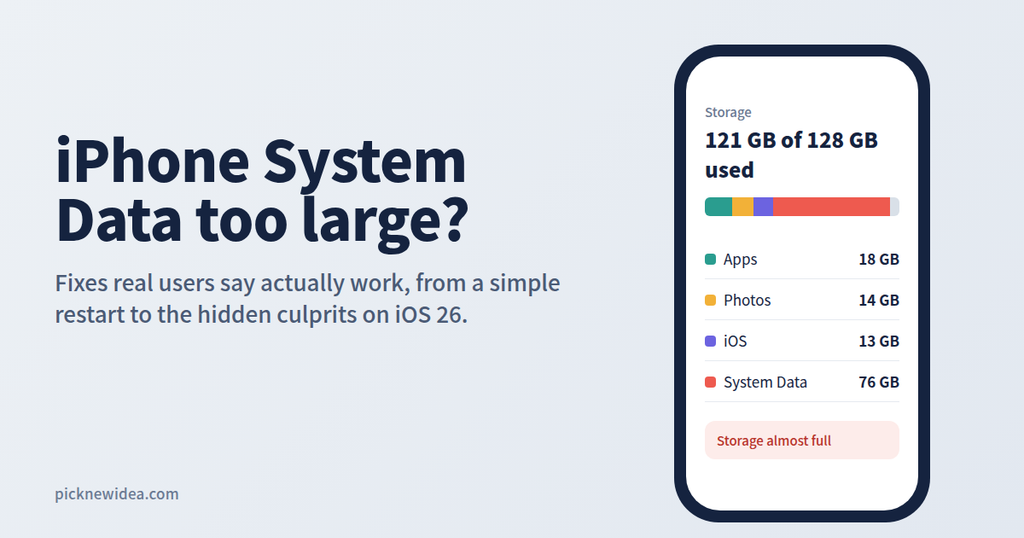
You open Settings > General > iPhone Storage, expecting photos or apps to be the problem. Instead, a gray bar labeled “System Data” is eating 20, 50, or even 100+ GB of your storage. You can’t tap into it, you can’t delete it, and Apple’s explanation is vague.
You’re far from alone. This is one of the longest-running complaints in the iPhone community, and it has come back loudly since iOS 26. To write this guide, we went through dozens of real user discussions on MacRumors, Apple Community, and Apple’s Developer Forums to separate the fixes people say work from the ones that actually help.
What Is iPhone System Data?
System Data is the category that used to be called “Other.” Apple told Business Insider that it covers caches, logs, and other resources the system is using, including short-lived temporary files that iOS relies on to keep the iPhone running smoothly. According to Apple, the system manages this space on its own and removes temporary files automatically once they’re no longer needed. aolaol
In practice, that usually includes Safari and app caches, downloaded mail and attachments, streaming buffers, system logs, and on-device resources like Apple Intelligence models.
Normal vs. Abnormal System Data
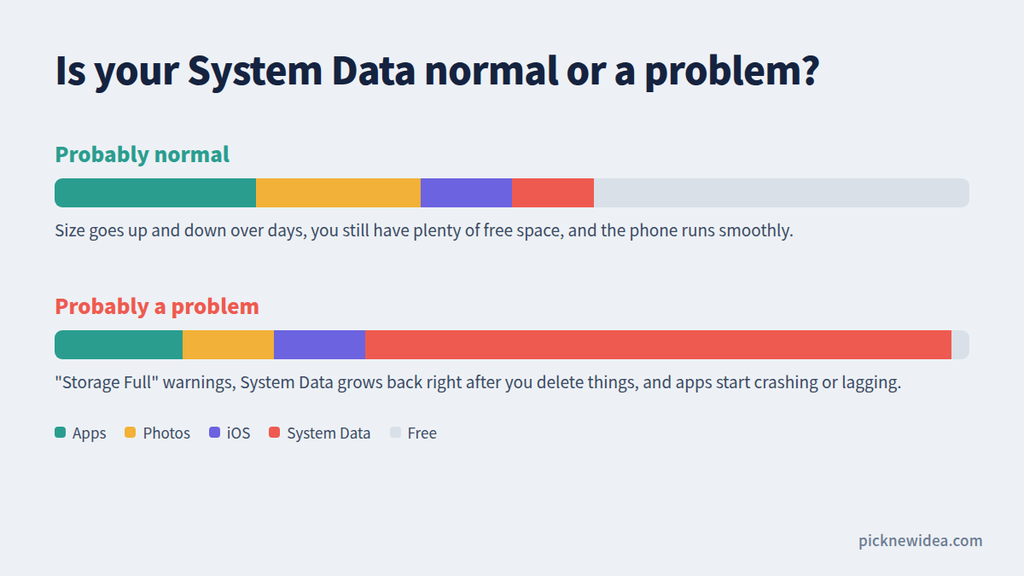
Not every large number is a bug. As one experienced MacRumors member pointed out, iOS deliberately keeps purgeable cache and only removes it when storage runs low, since deleting it early wastes resources and the data may simply be needed again. Another user shared that their System Data sits at about 12 GB simply because their 64 GB phone is three-quarters full, so iOS has less spare room to use as cache. MacRumorsMacRumors
It’s probably normal if System Data changes size over time, you have plenty of free storage, and your phone runs fine.
It’s probably a problem if you see “Storage Full” warnings, System Data grows immediately after you delete things, or apps start crashing and lagging.
What Real Users Are Reporting
Browsing the forums shows just how extreme this can get. One Business Insider writer found 80 GB of System Data on a 256 GB iPhone, which dropped to 50 GB by the next morning. That shows how wildly the number can swing. aol
The problem has also resurfaced with iOS 26. A MacRumors user on an iPhone 16 Pro Max reported System Data climbing from 29 GB to 34 GB overnight, even after rebooting, clearing Safari, reinstalling apps, and restoring from backup. On Apple Community, one owner of an iPhone 12 Pro and iPad described how, minutes after deleting files and apps, System Data would expand to fill the space they had just freed. MacRumorsApple Community
The frustrating part is that there’s no single cause. But across all those threads, the same handful of fixes keep coming up. Here they are, from easiest to most drastic.
9 Fixes for Large iPhone System Data (Ranked by Effort)
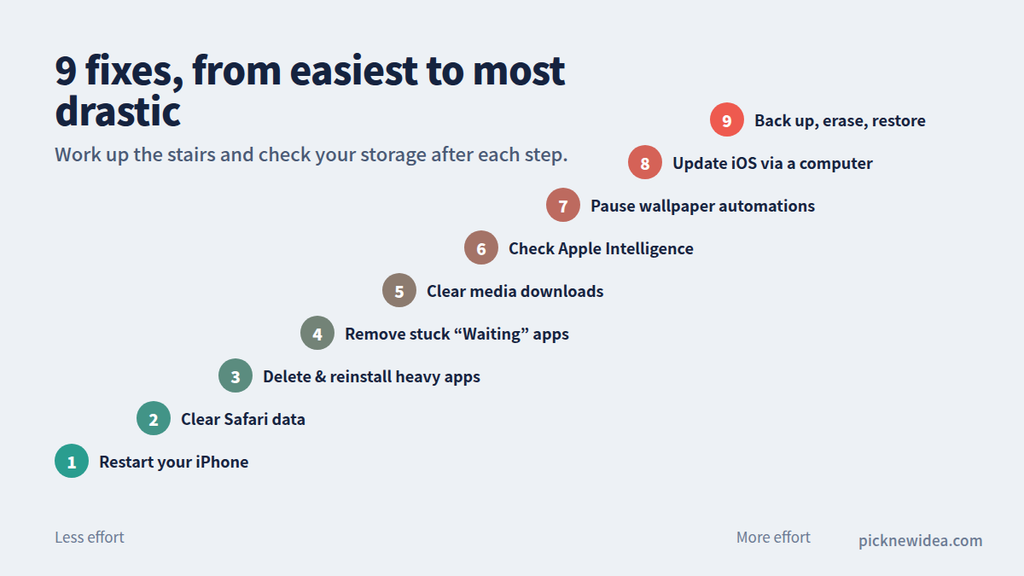
Before you start, write down your current System Data size so you can tell which fix actually worked.
1. Restart Your iPhone
Don’t skip this because it sounds too simple. One Apple Developer Forums user with an iPhone 11 Pro said a single reboot brought System Data down from 25 GB to 8 GB. apple
The catch is that if a bug is causing the growth, a restart only buys you time. An iPhone 14 Pro Max owner on MacRumors noted that restarting dropped System Data to around 4 GB, but it climbed back to 65 GB within an hour. If that happens to you, keep going down this list. MacRumors
2. Clear Safari History and Website Data
Go to Settings > Apps > Safari (or Settings > Safari on older iOS) and tap Clear History and Website Data. This is a safe, standard fix that frees up cached website data. You’ll be signed out of some sites, but your bookmarks remain.
3. Delete and Reinstall Heavy Apps (Don’t Just Offload)
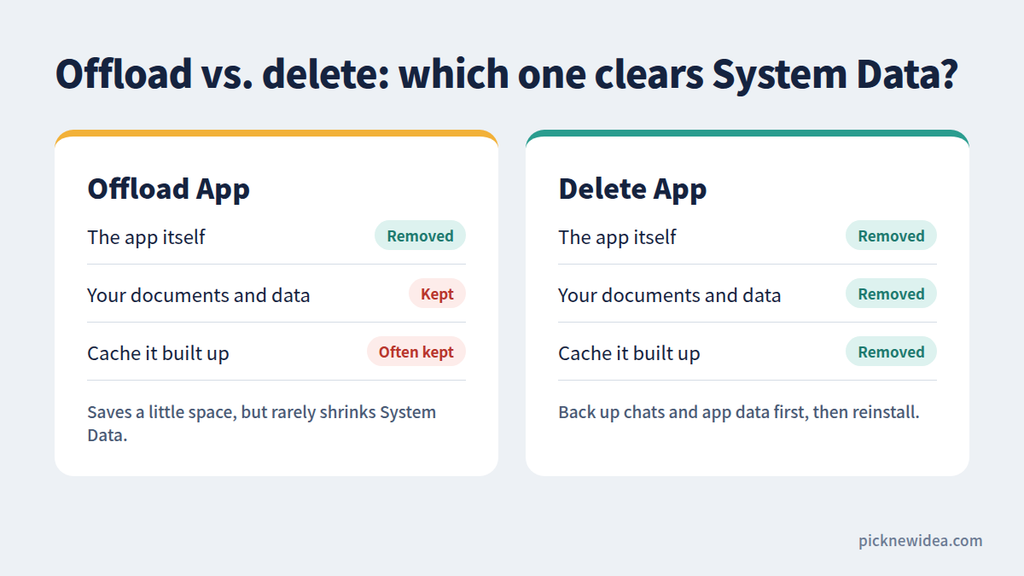
This is one of the most consistently reported fixes, and many people get it wrong. An Apple Community contributor explained that offloading only removes the app itself and leaves its data on the device; to clear the cache and System Data an app has built up, you need to delete it outright. Apple Community
Real users have seen big results from this:
- One user recovered about 15 GB by deleting Facebook, Twitter, and Instagram, then reinstalling them. apple
- Another said deleting and reinstalling Apple Podcasts freed a staggering 130 GB. apple
- On MacRumors, an iPhone 14 Pro user fixed the issue by backing up WhatsApp to iCloud, reinstalling the app, and rebooting. MacRumors
Important: Before deleting any app, make sure its data is backed up or synced. This is especially true for WhatsApp chats, notes apps, and games.
4. Remove “Ghost” Apps Stuck on “Waiting”
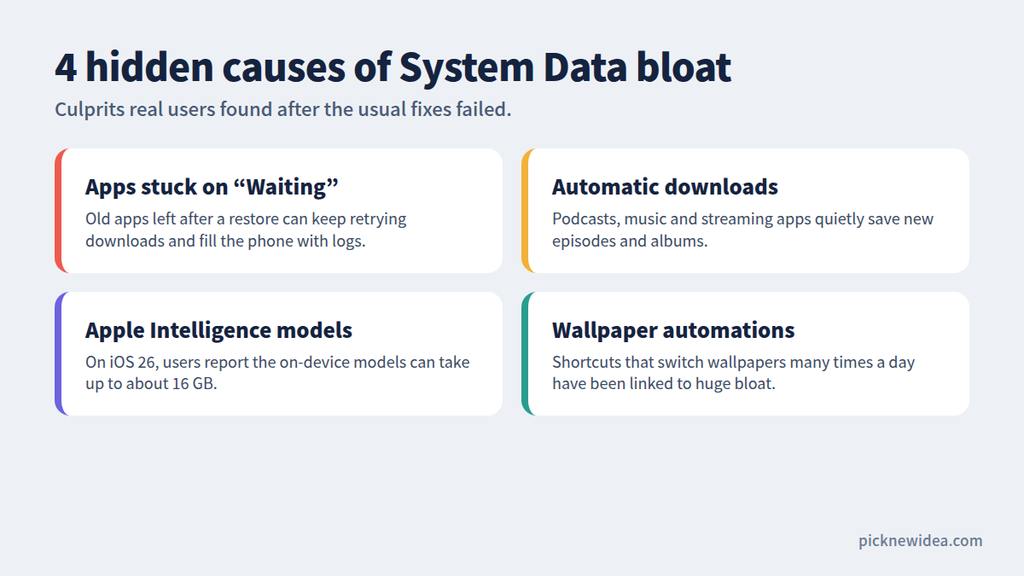
This hidden culprit is easy to miss. An Apple Community user found that after restoring a backup, several old apps no longer on the App Store stayed on the Home Screen, greyed out and stuck on “Waiting” forever. Deleting them immediately stopped System Data from growing, apparently because the phone kept retrying the downloads and filling up with logs. Apple Community
Scroll through your Home Screen and App Library. Delete any app that’s faded out, shows a download icon, or has been “Waiting” for days.
5. Clear Downloads in Music, Podcasts, and Streaming Apps
Offline content adds up fast. Check Apple Music, Podcasts, Spotify, Netflix, and YouTube for downloaded episodes, albums, or videos you no longer need. In one MacRumors thread, a user stabilized their System Data by disabling automatic episode downloads and automatic music syncing to their Apple Watch. MacRumors
6. Check Apple Intelligence (iOS 26 Users)
If you’re on a supported iPhone running iOS 26, Apple Intelligence’s on-device models take up real space. One MacRumors member noted that these models can use up to 16 GB, and suggested turning Apple Intelligence off, waiting a few hours for the models to be removed, then turning it back on. The setting is under Settings > Apple Intelligence & Siri. MacRumors
7. Look for Heavy Wallpaper and Shortcut Automations
This is an unusual one, but worth checking if you’re a customization fan. An Apple Community user traced 96 GB of System Data to wallpapers, saying a Shortcut that repeatedly switched Lock Screen and Home Screen wallpapers could fill their remaining storage in under an hour. If you run automations that change wallpapers frequently, pause them and watch whether System Data stops climbing. Apple Community
8. Update iOS (Preferably Through a Computer)
iOS updates sometimes act like a partial cleanup. One MacRumors user with an iPhone 17 Pro Max said that updating to iOS 26.2 dropped their System Data from roughly 50 GB back to about 20 GB. MacRumors
If your phone is too full to update over the air, one Apple Community user recommended using a computer to install the update when storage is low. Connect to a Mac (Finder) or a Windows PC (Apple Devices app) and update from there. Apple Community
9. Back Up, Erase, and Restore (The Last Resort)
When nothing else works, this is the fix that forum veterans point to most often. An Apple Community contributor explained that bloated System Data is most often caused by corrupted data, and a backup and restore will clear it for the users who are affected. Apple Community
One user who had been reluctant to try this “nuclear option” said it was easy and effective, cutting total usage down to 13 GB with everything else unchanged and without even needing to log back into apps. apple
How to do it safely:
- Back up to iCloud or a computer and confirm the backup finished.
- Go to Settings > General > Transfer or Reset iPhone > Erase All Content and Settings.
- Restore from your backup during setup.
Be aware that this doesn’t always hold. Some iOS 26 users on Apple Community report that a factory reset only fixed the problem temporarily, with System Data creeping back up afterward. If that happens, combine the restore with fixes 3–7 to find the app or feature responsible. Apple Community
Fixes Forum Users Recommend That We Don’t
Some “tricks” circulate widely but carry real risks:
- The date-change trick. Changing the system date far into the future to force caches to expire gets shared a lot. But one Apple Community post warned that this method risks boot loops and deleted messages, and didn’t work for everyone who tried it. We don’t recommend it. Apple Community
- iPhone “cleaner” apps. iOS doesn’t let third-party apps access system files or other apps’ caches, so these apps can’t actually clear System Data.
How to Keep System Data Under Control
- Keep at least 10–15% of your storage free so iOS has room to manage caches.
- Restart your iPhone once a week.
- Periodically delete and reinstall your heaviest social and streaming apps.
- Turn off automatic downloads you don’t need.
- Consider buying more storage next time. As one Apple Community helper put it, iPhone storage can never be expanded after purchase, so it’s worth choosing the largest capacity you can afford. Apple Community
Frequently Asked Questions
Why does my iPhone System Data keep growing?
Usually because apps and iOS are building up caches, logs, and temporary files. In some cases a stuck download, a buggy app, or a bug in the iOS version causes runaway growth.
Is it safe to delete System Data?
You can’t delete it directly. The fixes above let iOS clean it up safely.
Does offloading apps reduce System Data?
Often not. Offloading keeps the app’s data on the device. Deleting and reinstalling the app is what clears its cache.
Will iCloud storage fix System Data?
No. iCloud and your iPhone’s internal storage are separate, and buying more iCloud space doesn’t free up space on the phone.
Should I contact Apple Support?
Yes, if System Data keeps filling your phone even after a full erase and restore. It may point to a bug worth reporting through the Feedback app or Apple Support.
Final Thoughts
A huge System Data number looks scary, but real user experience shows it’s usually fixable. Start with the simple steps: restart, clear Safari, and delete and reinstall heavy apps. Then hunt for hidden culprits like stuck “Waiting” apps, auto-downloads, and wallpaper automations. Save the erase-and-restore method for last, and check your storage after each step so you know exactly what worked.