
Few things are more annoying than seeing your iPhone battery drop faster than expected.
You start the day with a full charge, use your phone normally, and by mid-afternoon the battery is already running low. In some cases, the percentage keeps dropping even when the phone is sitting idle.
It’s easy to assume the battery is failing, but that’s not always the case. Rapid battery drain can be caused by a variety of factors, including background apps, display settings, poor cellular reception, location services, or even a recent iOS update.
The good news is that most battery-related issues can be identified and fixed without replacing the device. A few small changes are often enough to noticeably improve battery life.
Here’s what may be causing your iPhone battery to drain so quickly and what you can do about it.
Quick Answer
If your iPhone battery is draining faster than normal, the most common causes are background app activity, high screen brightness, poor network signal, location services, recent iOS updates, and battery aging.
In many cases, checking Battery Health and reviewing battery usage in Settings can quickly reveal what’s consuming the most power. If your battery health is still in good condition, the issue is often related to software settings rather than hardware.
Is This Battery Drain Actually Abnormal?
Before looking for a fix, it’s worth determining whether your battery is draining faster than it should.
Battery life varies depending on how you use your iPhone. Streaming videos, gaming, using GPS navigation, and recording videos all consume significantly more power than texting, browsing websites, or checking email.
For example, it’s completely normal to see your battery percentage drop more quickly when you’re:
- Watching YouTube or Netflix for long periods
- Using Apple Maps or Google Maps
- Playing graphics-intensive games
- Taking photos and videos frequently
- Using mobile data instead of Wi-Fi
It’s also common to notice increased battery usage for a day or two after installing a major iOS update. During this time, the system may be completing background tasks and optimizing apps.
Battery drain becomes more concerning when:
- Your battery loses a large percentage during light use
- The phone drains noticeably while sitting idle
- The device feels warm even when you’re not doing anything demanding
- Battery life suddenly becomes much worse without any obvious change in usage
If you’re experiencing one of these situations, there’s usually a specific cause behind it.
1. Your Battery Health May Be Declining
Every iPhone battery gradually loses capacity as it ages.
Apple uses lithium-ion batteries, which are designed to retain performance for years, but no battery lasts forever. Over time, the battery can hold less charge than it did when the device was new.
To check your battery’s condition, go to:
Settings > Battery > Battery Health & Charging
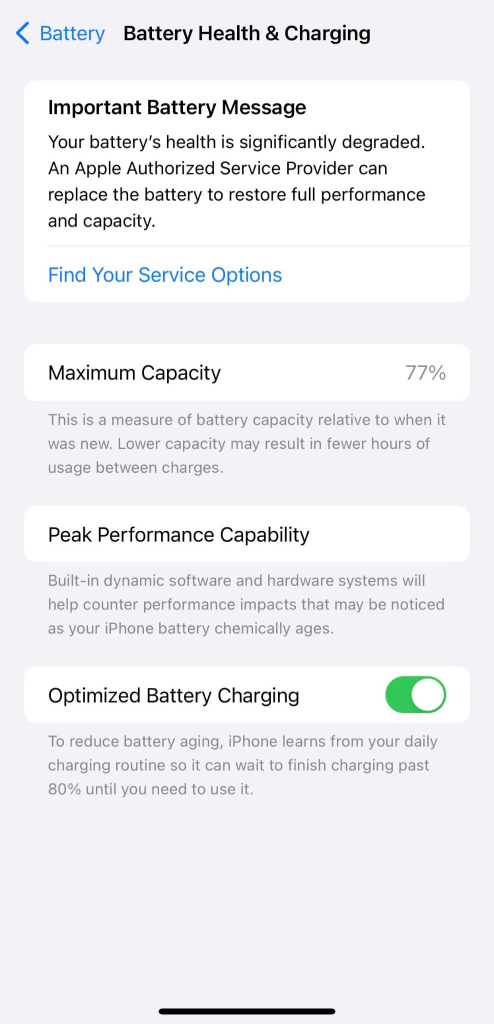
Look for the Maximum Capacity percentage.
Generally speaking:
- 90% or higher is still in good condition
- 80–89% shows normal aging
- Below 80% may noticeably affect battery life
If your battery health is still above 90%, the battery itself is probably not the main reason your iPhone is draining quickly. In that case, software settings or app activity are often responsible.
If the percentage is below 80%, replacing the battery may be worth considering, especially if you’re charging multiple times per day.
2. Apps Running in the Background
Many apps continue working even after you’ve stopped using them.
They may refresh content, sync data, track location, check for updates, or send notifications behind the scenes. While each activity uses only a small amount of power, the combined effect can significantly impact battery life.
Social media, navigation, and video apps are often among the biggest battery consumers, including:
- TikTok
- YouTube
- Google Maps
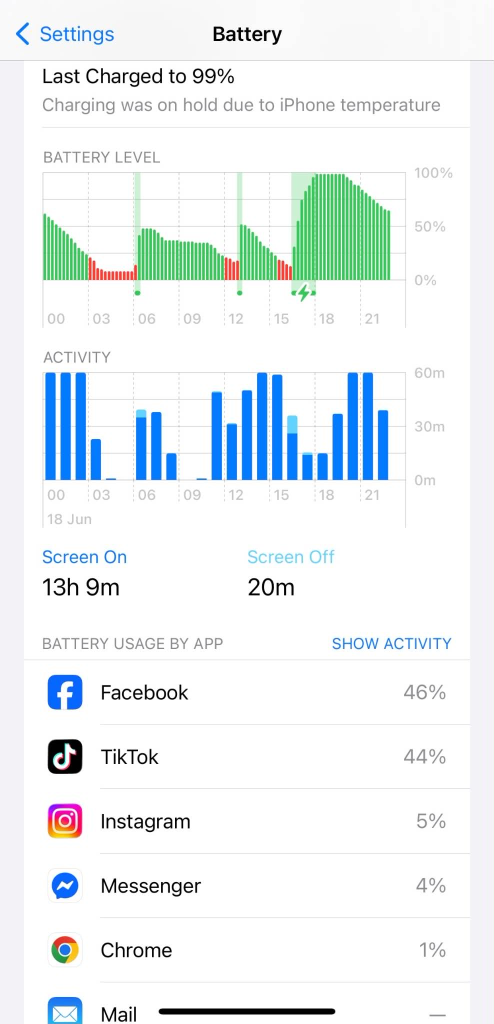
To see which apps are using the most battery, go to:
Settings > Battery
Scroll down to the Battery Usage section and review the list of apps. If an app is consuming an unusually large percentage of battery, it may be worth limiting its background activity or reducing how often you use it.
You can also review Background App Refresh by going to:
Settings > General > Background App Refresh
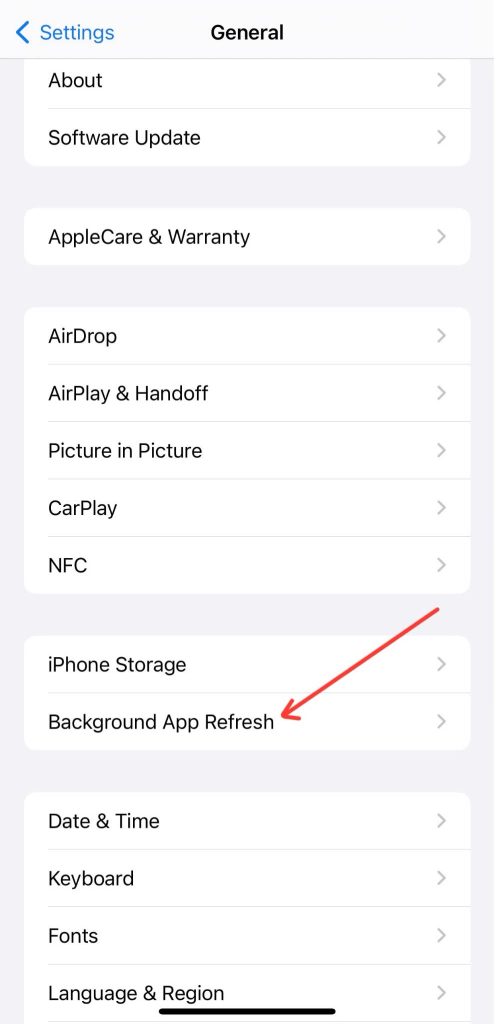
Disabling this feature for apps that don’t need constant updates can help extend battery life without affecting your overall experience.
3. High Screen Brightness and Display Settings
Your iPhone’s display is one of the largest consumers of battery power.
The brighter the screen, the more energy it requires. If you regularly use your phone outdoors or keep brightness near maximum, battery life can decrease much faster than expected.
To check your brightness level, go to:
Settings > Display & Brightness
Lowering brightness even slightly can make a noticeable difference over the course of a day.
You should also consider enabling Auto-Brightness, which automatically adjusts the display based on your surroundings. This prevents the screen from staying brighter than necessary and helps reduce unnecessary battery usage.
Another setting worth checking is Always-On Display on supported iPhone models. While the feature is designed to be efficient, it still consumes power because parts of the screen remain active even when the device is locked.
If battery life is your priority, disabling Always-On Display may help extend the time between charges.
Finally, don’t overlook your actual screen time. Sometimes the issue isn’t a battery problem at all—it’s simply that you’re using your phone more than usual.
You can check your daily usage by going to:
Settings > Screen Time
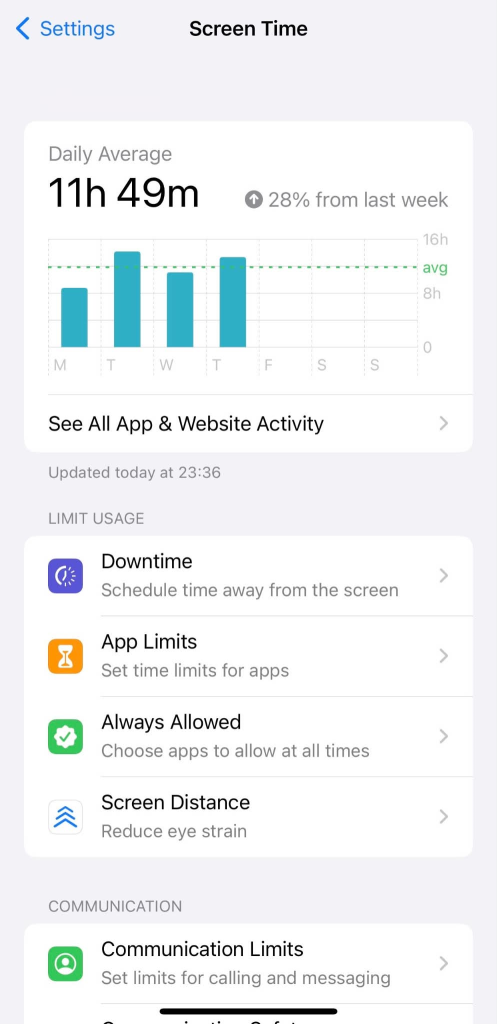
Many users discover that their screen time has increased significantly without realizing it.
4. Poor Cellular Signal
A weak cellular signal can drain your battery surprisingly quickly.
When your iPhone struggles to maintain a connection, it constantly works harder to communicate with nearby cell towers. This extra effort happens in the background and continues even when you’re not actively using the device.
Poor signal strength is common in places such as:
- Underground parking garages
- Elevators
- Rural areas
- Large office buildings
- Remote travel locations
If you’ve ever noticed your battery draining faster at work, while traveling, or in certain parts of your home, signal strength could be the reason.
In some situations, 5G can also increase battery usage, particularly when coverage is inconsistent and the phone frequently switches between 5G and LTE networks.
To review your network settings, go to:
Settings > Cellular > Cellular Data Options
If battery life is more important than maximum speed, switching from 5G to LTE may improve endurance in areas with unstable coverage.
Whenever possible, connecting to a reliable Wi-Fi network is usually more power-efficient than relying on a weak cellular connection.
5. Location Services Are Always Running
Location Services help apps determine where you are, but they can also consume a significant amount of battery power.
Some apps only access your location when they’re open. Others may continue tracking your location in the background throughout the day.
Navigation apps are the most obvious example, but weather apps, food delivery apps, social media platforms, and shopping apps can also request location access.
Over time, these background location requests can add up.
To review which apps have access to your location, go to:
Settings > Privacy & Security > Location Services
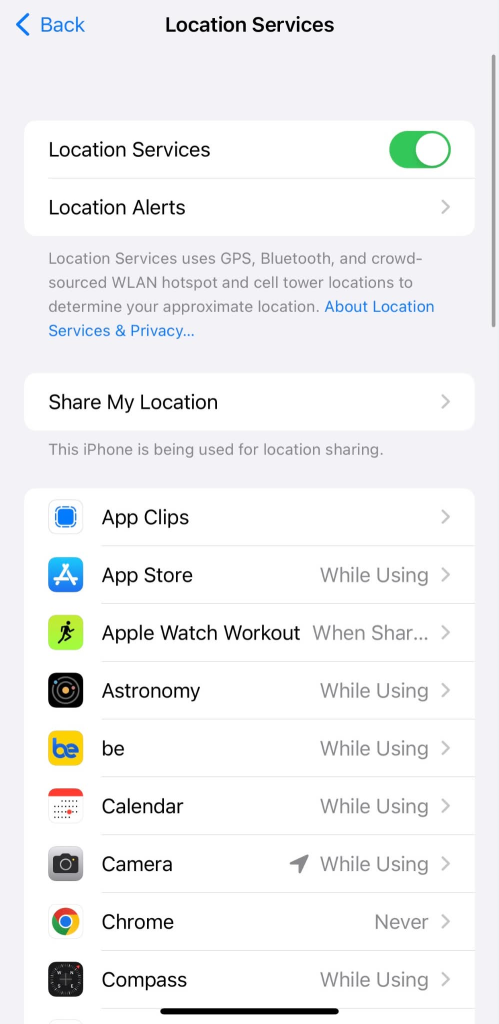
For each app, you’ll typically see options such as:
- Never
- Ask Next Time
- While Using the App
- Always
For most apps, While Using the App is the best balance between convenience and battery life.
It’s also worth checking for apps that have been granted Always access without a clear reason. Restricting unnecessary location tracking can often reduce battery drain immediately.
Another useful feature is the Location Services screen itself. Scroll through the list and look for apps that you rarely use but still have location permissions enabled.
Removing access for those apps won’t affect your iPhone’s performance and may help preserve battery life.
6. A Recent iOS Update May Be Responsible
If your battery started draining shortly after installing an iOS update, you’re not alone.
Many users notice reduced battery life immediately after a major software update. In most cases, this is temporary.
After an update, your iPhone may spend time:
- Re-indexing files
- Optimizing photos
- Updating app data
- Performing background maintenance tasks
These processes can increase battery usage for a day or two.
The key thing to remember is that this doesn’t necessarily indicate a problem with the update itself.
If battery performance worsened immediately after updating, give the device some time before assuming something is wrong. Many battery-related complaints resolve on their own once background processes finish.
However, if the issue continues for several days, it’s worth checking app usage, battery health, and software settings to see if another factor is involved.
How to Improve iPhone Battery Life
If your iPhone battery isn’t lasting as long as it should, a few simple adjustments can often make a noticeable difference.
Start with the changes that have the biggest impact.
Lower Screen Brightness
The display is one of the largest battery consumers on any iPhone.
Reducing brightness or enabling Auto-Brightness can help extend battery life without affecting everyday usability.
Use Low Power Mode
Low Power Mode temporarily reduces background activity, visual effects, and other non-essential tasks.
To enable it, go to:
Settings > Battery > Low Power Mode
This is especially useful when you’re away from a charger or trying to make your battery last through the day.
Review Battery Usage
Check which apps are consuming the most power.
Go to:
Settings > Battery
If one app is responsible for an unusually large percentage of battery usage, consider reducing how often you use it or reviewing its permissions and background activity.
Limit Location Access
Not every app needs constant access to your location.
Changing permissions from Always to While Using the App can reduce unnecessary battery drain while maintaining normal functionality.
Connect to Wi-Fi When Available
A strong Wi-Fi connection typically uses less power than a weak cellular signal.
If you’re in an area with poor reception, connecting to Wi-Fi can help improve battery life and reduce background power consumption.
Keep Apps Updated
App developers frequently release updates that improve performance and fix battery-related issues.
Keeping apps up to date ensures you’re running the most optimized version available.
Avoid Extreme Temperatures
Very hot and very cold environments can temporarily affect battery performance.
Whenever possible, avoid leaving your iPhone in direct sunlight, hot vehicles, or freezing conditions for extended periods.
Small adjustments like these may not seem significant on their own, but together they can noticeably improve battery life.
Signs You May Need a New Battery
Software settings are often responsible for battery problems, but sometimes the battery itself has reached the end of its useful life.
Common signs include:
- Battery Health below 80%
- Needing to recharge multiple times per day
- Unexpected shutdowns
- Rapid battery percentage drops
- Slower overall performance during demanding tasks
If you’re experiencing several of these symptoms and your Battery Health is low, replacing the battery may provide a substantial improvement.
In many cases, a battery replacement can make an older iPhone feel far more reliable without the cost of purchasing a new device.
Frequently Asked Questions
Why does my iPhone battery drain overnight?
Background app activity, poor cellular reception, software updates, and location services are common causes of overnight battery drain. Checking Battery Usage in Settings can help identify the source.
Does charging my iPhone overnight damage the battery?
Modern iPhones include battery management features that help reduce wear during overnight charging. For most users, charging overnight is perfectly safe.
Why is my battery worse after an iOS update?
After a major update, your iPhone may perform background tasks such as indexing files and optimizing apps. Battery life often returns to normal after a day or two.
Is Low Power Mode bad for my iPhone?
No. Low Power Mode is designed by Apple to reduce energy consumption and can be used whenever needed.
At what Battery Health percentage should I replace my battery?
Apple generally recommends considering battery replacement once Maximum Capacity drops below 80%, especially if battery life has become noticeably shorter.
Final Thoughts
A rapidly draining iPhone battery doesn’t automatically mean the battery is failing.
In many cases, the issue is related to background apps, display settings, location services, weak cellular signals, or temporary software activity after an iOS update.
Start by checking Battery Health and reviewing battery usage in Settings. These two areas often provide the fastest clues about what’s affecting battery life.
If your battery health is still strong, a few simple adjustments may be all that’s needed to keep your iPhone running longer between charges.